Part 1: Ergonomic Factors for Computer Users
Week 3 — Lesson 1 | CI1000: Computer Basics for Healthcare Professionals
Learning Objectives
By the end of this lesson you will be able to:
- Identify ergonomic risk factors that contribute to repetitive strain injuries such as carpal tunnel syndrome.
- Apply ergonomic best practices to configure a safe typing workstation.
- Demonstrate typing at 17 WPM with 75% accuracy using proper posture and technique.
Part 1: Ergonomic Factors for Computer Users
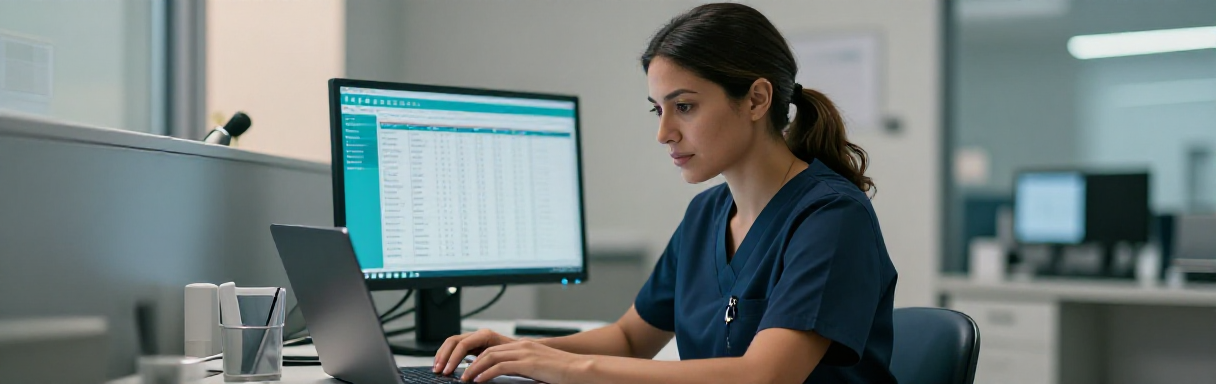
As you build your typing speed toward 17 words per minute this week, it is equally important to develop the physical habits that will protect your body throughout your career. Ergonomics is the science of designing your workspace to fit your body, reducing strain and preventing injury. For healthcare professionals who spend hours entering data into electronic health records (EHR) and composing patient documentation, good ergonomic practices are not optional. They are essential.
According to the Occupational Safety and Health Administration (OSHA), computer-related musculoskeletal disorders account for a significant portion of workplace injuries. The good news is that most of these injuries are preventable with proper workstation setup and healthy habits.
Your Workstation Setup Checklist
A properly configured workstation begins with five key adjustments. Use the following checklist every time you sit down to type:
- Chair height -- Adjust your chair so your feet rest flat on the floor and your thighs are parallel to the ground. If your feet do not reach the floor, use a footrest.
- Monitor position -- Place your screen at arm's length, with the top of the monitor at or slightly below eye level. This prevents you from tilting your head up or down, which strains the neck.
- Keyboard placement -- Position the keyboard directly in front of you at elbow height. Your elbows should form a 90-degree angle, and your wrists should remain straight, not angled up or down.
- Mouse position -- Keep the mouse close to the keyboard on the same surface. Reaching for a mouse that is too far away creates shoulder strain over time.
- Lighting and glare -- Position your monitor to avoid glare from windows or overhead lights. Adjust screen brightness to match your room lighting, and consider using a matte screen filter if glare is unavoidable.
Healthcare Connection: In a medical office, you may not always have control over your workstation. Front desk staff often share computers, and examination room workstations may be mounted on walls or placed on carts. Even in these situations, you can apply ergonomic principles. Adjust the chair if possible, position the keyboard at elbow height, and take frequent micro-breaks between patients. Your body will thank you after a full day of charting.
Part 2: Common Typing Injuries and Prevention
When you type for extended periods without proper posture or breaks, your body can develop repetitive strain injuries (RSI). These are conditions caused by performing the same motion over and over, and they affect millions of computer users every year. As a future healthcare professional, understanding these conditions helps you protect yourself and recognize symptoms in others.
Conditions to Watch For
Carpal Tunnel Syndrome
Carpal tunnel syndrome occurs when the median nerve, which runs through a narrow passage in your wrist called the carpal tunnel, becomes compressed. According to the Cleveland Clinic, symptoms include the following:
- Numbness, tingling, or burning in the thumb, index, and middle fingers
- Weakness in the hand that makes it difficult to grip objects
- Pain that may radiate up the forearm
- Symptoms that worsen at night or after prolonged typing
Prevention: Keep your wrists in a neutral, straight position while typing. Avoid resting your wrists on the edge of the desk or a wrist rest while actively typing. Take breaks every 30 minutes and perform wrist stretches.
Repetitive Strain Injury (RSI)
RSI is a general term for pain and damage caused by repetitive motions. It can affect the hands, wrists, elbows, shoulders, and neck. Warning signs include the following:
- Persistent aching or stiffness in the hands or forearms
- A throbbing sensation after typing
- Reduced grip strength or coordination
Prevention: Vary your tasks throughout the day. Alternate between typing, reading, and other activities. Use keyboard shortcuts to reduce repetitive mouse movements.
Trigger Finger and De Quervain's Tenosynovitis
Trigger finger causes a finger to lock in a bent position, then suddenly snap straight. It results from inflammation of the tendon sheath.
De Quervain's tenosynovitis causes pain on the thumb side of the wrist, making it painful to grip or twist. It is often linked to repetitive hand and wrist movements.
Prevention for both: Avoid gripping the mouse too tightly. Relax your hands when you are not actively typing. Stretch your fingers and thumbs regularly.
Click an item on the left, then click its match on the right.
The 20-20-20 Rule and Micro-Breaks
OSHA recommends taking short breaks throughout your workday to reduce strain. Two strategies are especially effective:
- The 20-20-20 Rule -- Every 20 minutes, look at something 20 feet away for at least 20 seconds. This reduces eye strain from staring at a screen.
- Micro-breaks -- Every 30 minutes, stand up, stretch your hands and wrists, roll your shoulders, and walk for 30 seconds. These brief pauses give your muscles a chance to recover.
Pro Tip: Set a quiet timer on your phone or use the built-in Windows Clock app to remind yourself to take breaks. In a busy medical office, it is easy to lose track of time while entering patient data or processing insurance forms.
Part 3: Your 17 WPM Target
Last week, you worked toward a speed of 10 words per minute with 70% accuracy. This week, your target is 17 WPM with 75% accuracy. That may sound like a small jump, but it represents real progress in your muscle memory and finger coordination.
What 17 WPM Looks and Feels Like
At 17 words per minute, you are typing approximately 85 characters per minute. That is roughly one word every three and a half seconds. At this pace, you could type a short paragraph of about four sentences in one minute. In a healthcare context, you could enter a brief patient note or complete a single field in an intake form in under 30 seconds.
Speed-Building Strategies
Getting from 10 to 17 WPM is about building on the foundation you already have. The following strategies will help you make steady progress:
- Focus on rhythm, not bursts. Typing at a steady, even pace is faster and more accurate than typing in short bursts followed by pauses. Think of a metronome keeping a steady beat.
- Keep your eyes on the screen. Resist the urge to look at the keyboard. Looking down disrupts your rhythm and slows you down. Trust your muscle memory from home row practice.
- Prioritize accuracy over speed. At this stage, accuracy matters more than raw speed. Correcting mistakes takes time, so reducing errors is the fastest way to improve your net WPM. Your target is 75% accuracy, which means at most one error in every four words.
- Practice common letter pairs. Many English words use the same letter combinations repeatedly. Practicing pairs such as "th," "er," "in," "on," and "an" builds speed on the patterns you will type most often.
- Use the shift key with the opposite hand. When you need to capitalize a letter, press and hold the Shift key with the hand that is not typing the letter. This prevents awkward finger stretching and maintains your rhythm.
Key Takeaway: Speed follows accuracy. If you can type 15 WPM with zero errors, you are closer to your goal than someone who types 20 WPM with frequent mistakes. The time spent correcting errors eats into your effective speed. Build accuracy first, and speed will follow naturally.
Knowledge Check
Part 4: Fun Ways to Practice
Repetitive drills are valuable, but they can feel tedious after a while. The good news is that SAM from Cengage provides varied, structured typing exercises that keep your practice engaging. Mixing SAM's different activity types keeps your motivation high and helps you reach 17 WPM more quickly.
Your Practice Resource: SAM from Cengage
SAM Keyboarding: Your primary typing practice tool is SAM (Skills Assessment Manager) from Cengage, available through your D2L Brightspace course. SAM provides structured speed drills, adaptive exercises that target your weakest keys, and timed assessments that track your WPM and accuracy over time. Launch SAM from the activity links in your weekly course modules.
Building a Daily Practice Routine
Consistency matters more than marathon sessions. A focused 15-minute daily practice is more effective than one 90-minute session per week. Consider the following routine:
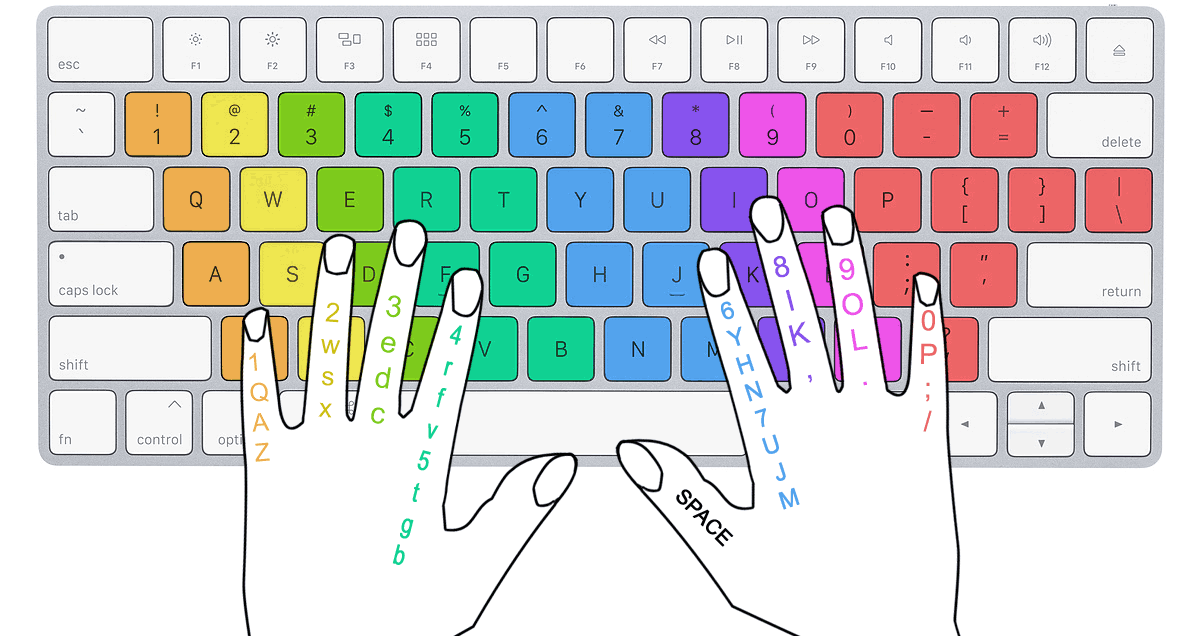
- Warm-up (three minutes) -- Type the home row keys slowly and deliberately: ASDF JKL; and back. Focus on accuracy, not speed.
- Targeted drill (five minutes) -- Use SAM's adaptive exercises to work on your weakest keys. The system will automatically focus on the keys you need to practice most.
- Speed test (two minutes) -- Take a timed typing test in SAM. Record your WPM and accuracy in your WPM Tracker document.
- Fun practice (five minutes) -- Try a different SAM activity type or practice with the typing test below. Variety keeps your practice sessions engaging.

Tracking Your Progress
Open the WPM Tracker document you created in Week 1 and add your results for this week. Record the following after each practice session:
- Date and time of practice
- WPM score
- Accuracy percentage
- Keys or patterns that gave you trouble
- One thing you will focus on next time
Reviewing your tracker entries over time reveals patterns. You might notice that certain keys consistently slow you down, or that your accuracy improves on days when you warm up properly. This self-reflection is the same kind of data-driven thinking that healthcare professionals use to track patient outcomes.
Try It: Right now, open your D2L Brightspace course and launch this week's SAM keyboarding activity. Take a one-minute typing test and write down your WPM and accuracy. This is your Week 3 starting point. By the end of this week, aim to beat today's score by at least two WPM.
Knowledge Check
Five-Minute Typing Test
Put your skills to the test. Type the medical records passage below. Keep your eyes on the screen and trust your fingers to find the keys.
Test Complete!
Medical Terminology Tip: This passage includes medical terms you will encounter in healthcare workplaces. Practicing with these words now means your fingers will already know them when you need to type them on the job. If a word is unfamiliar, slow down and type it carefully rather than guessing.
Lesson 3.1 Summary
- Ergonomics is the science of designing your workspace to fit your body, reducing strain and preventing injury during extended typing sessions.
- A proper workstation setup includes correct chair height, monitor at arm's length and eye level, keyboard at elbow height with a 90-degree elbow angle, and mouse positioned close to the keyboard.
- Carpal tunnel syndrome, RSI, trigger finger, and De Quervain's tenosynovitis are preventable typing injuries caused by poor posture, repetitive motion, and lack of breaks.
- Follow the 20-20-20 rule for eye strain and take micro-breaks every 30 minutes to protect your muscles and joints.
- Your Week 3 target is 17 WPM with 75% accuracy. Focus on smooth rhythm, keeping your eyes on the screen, and prioritizing accuracy over speed.
- Use SAM Cengage keyboarding activities for 15 minutes daily to build speed and maintain motivation.
- Track every practice session in your WPM Tracker document to identify patterns and measure progress over time.