Part 1 of 5 — What Is an Operating System?
Week 2 — Lesson 2 | CI1000: Computer Basics for Healthcare Professionals
Learning Objectives
By the end of this lesson you will be able to:
- Explain the purpose of an operating system and differentiate it from application software.
- Describe at least five core functions of an operating system using real-world analogies.
- Identify the input, processing, and output stages of computing.
- Explain why healthcare professionals need to understand operating system basics for troubleshooting and EHR access.
Part 1 of 5 — What Is an Operating System?
Every time you turn on a computer, tablet, or smartphone, something happens before you see a single icon on the screen. A special type of software starts running in the background, loading drivers, checking hardware, and preparing the environment so you can interact with the device. That software is the operating system (OS).
An operating system is the most fundamental piece of software on any computing device. It serves as the bridge between the hardware (the physical parts of the computer such as the processor, memory, and hard drive) and the software (the applications you use such as Microsoft Word, your web browser, and electronic health record systems). Without an operating system, you would have no way to communicate with the hardware, and none of your applications would run.
Common Operating Systems
You have probably used at least one of the following operating systems:
- Microsoft Windows — The most widely used desktop OS in business and healthcare settings. Windows 11 is the current version.
- macOS — Apple's operating system for Mac computers. Common in design, education, and some clinical research environments.
- ChromeOS — Google's lightweight OS for Chromebook laptops. Increasingly used in education and for basic office tasks.
- iOS — Apple's mobile OS for iPhones and iPads.
- Android — Google's mobile OS used on a wide variety of smartphones and tablets.
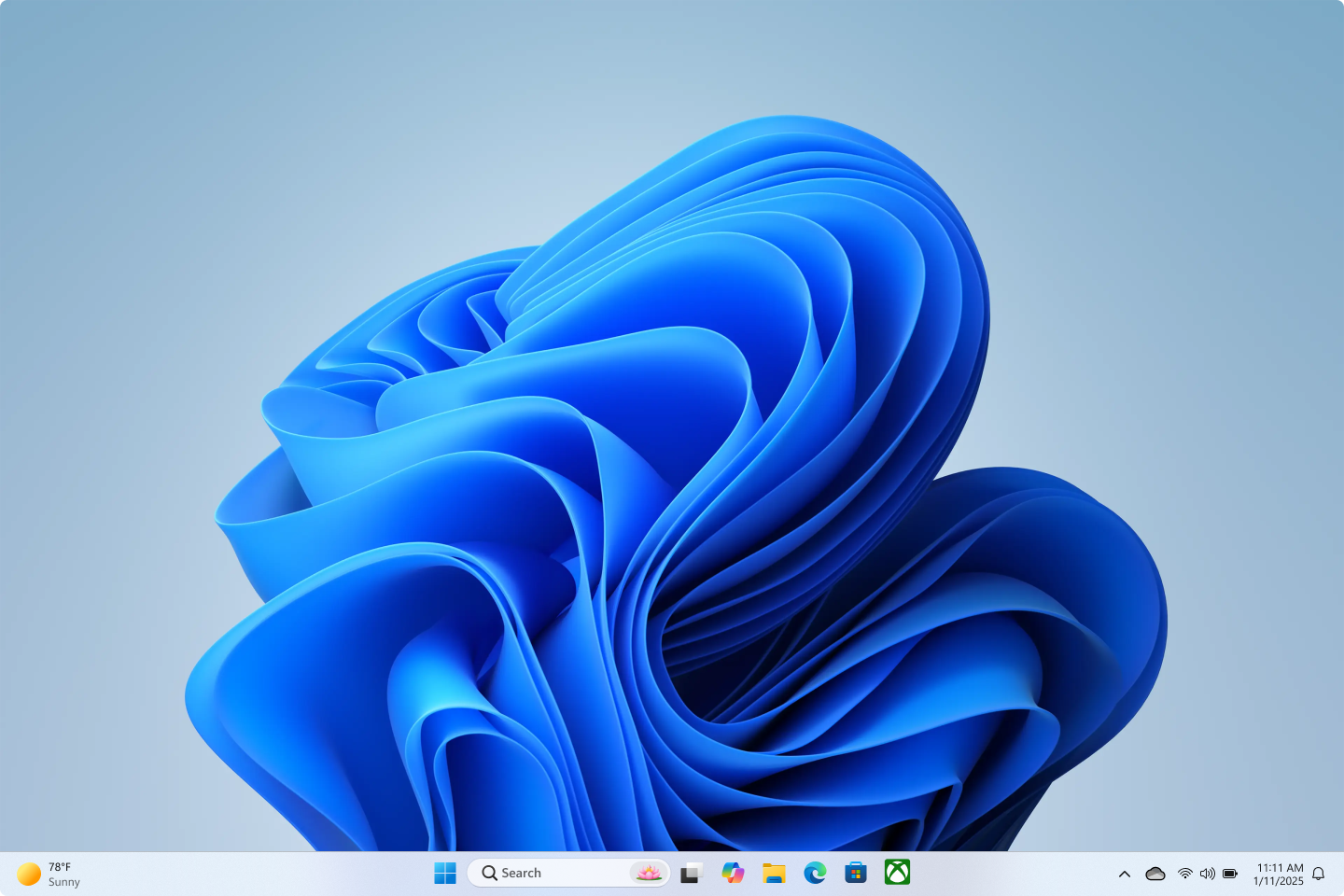
In most healthcare workplaces, the computers you use will run Microsoft Windows. The concepts you learn in this lesson apply to all operating systems, but examples and screenshots will focus on Windows 11 because that is what you are most likely to encounter on the job.
Part 2 of 5 — Application vs. System Software
All software on a computer falls into one of two broad categories: system software and application software. Understanding the difference helps you troubleshoot problems and communicate more effectively with IT support, which is a valuable skill in any healthcare workplace.
System Software
System software manages the computer itself. It runs in the background and handles the tasks that keep the computer functioning. System software includes the following:
- The operating system — Windows, macOS, or another OS that manages all hardware and software interactions.
- Device drivers — Small programs that allow the OS to communicate with specific hardware devices such as printers, scanners, and network adapters. When your office installs a new barcode scanner, the IT team installs a driver so Windows can recognize and use it.
- Utility programs — Tools that help maintain and optimize the computer, such as antivirus software, disk cleanup tools, and backup programs.
Application Software
Application software (often called "apps") is what you use to accomplish specific tasks. In a healthcare setting, you interact with application software every day:
- Microsoft Word — For creating documents such as letters, memos, and reports
- Microsoft Excel — For managing data in spreadsheets such as supply inventories and schedules
- Microsoft Outlook — For email and calendar management
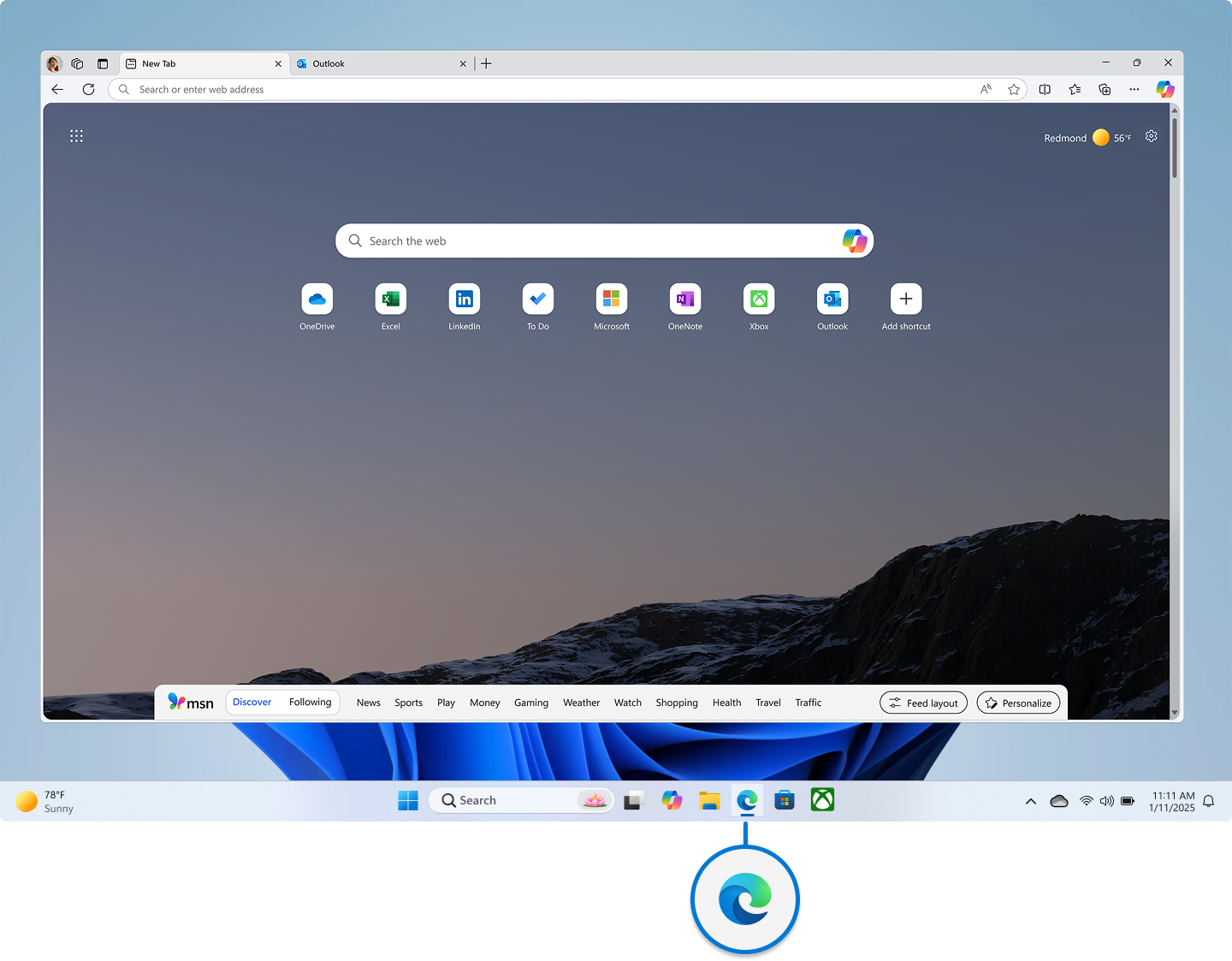
- Web browsers (Edge, Chrome) — For accessing web-based resources and patient portals
- Electronic Health Record (EHR) systems — For managing patient data, scheduling, and clinical documentation
How They Work Together
Application software depends on system software to function. When you open Microsoft Word, for example, the operating system allocates memory for the program, loads the necessary files from the hard drive, and manages communication between Word and the display, keyboard, mouse, and printer. If the operating system stops working, all applications stop working as well. This is why a "frozen" computer that requires a restart is almost always an operating system issue, not an application issue.
Pro Tip: When reporting a computer problem to your IT department, it helps to specify whether the issue is with a specific application (for example, "Word keeps crashing when I try to print") or with the entire computer (for example, "the screen froze and nothing responds"). This distinction helps IT diagnose whether the problem is in the application layer or the operating system layer.
Part 3 of 5 — Core Functions of an Operating System
An operating system performs many tasks simultaneously, most of them invisible to you. To make these abstract functions easier to understand, think of the OS as a team of specialists working behind the scenes in a large hospital. Each specialist handles a specific responsibility. Select each tab below to explore the core functions:
Process Management (The Traffic Cop) — The OS manages every program running on your computer. When you have Word, Outlook, and your EHR system open at the same time, the OS decides how to divide the processor's attention among them. It ensures that each application gets enough processing time to function smoothly, and it stops programs that become unresponsive.
In healthcare, you frequently run multiple applications simultaneously. The OS is what allows you to type a referral letter in Word while checking your email in Outlook and looking up a patient record in the EHR, all without the computer grinding to a halt.
Memory Management (The Librarian) — The OS controls how the computer's RAM (random access memory) is used. It assigns memory to applications when they open and reclaims it when they close. If memory runs low, the OS uses a portion of the hard drive as temporary overflow space (called "virtual memory").
When your computer starts running slowly after you have opened many applications, memory management is the reason. The OS is juggling limited resources. Closing applications you are not actively using frees up memory and improves performance.
File Management (The Filing Clerk) — The OS organizes and tracks every file on the hard drive. It manages the folder structure, file names, file locations, and access permissions. When you save a Word document to your Documents folder, the OS records exactly where on the hard drive the file is stored so it can retrieve it later.
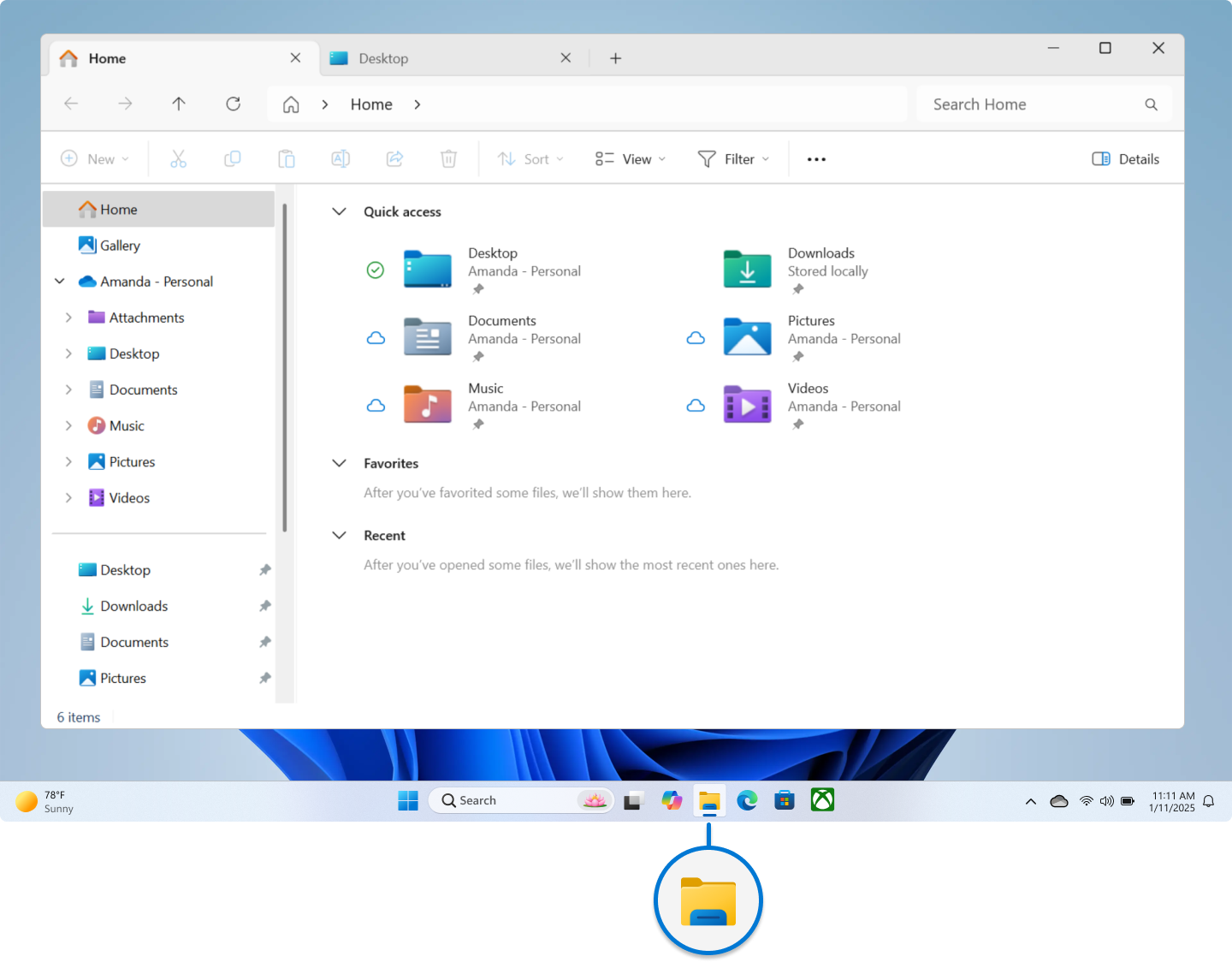
You explored File Explorer in Week 1. File Explorer is the application; the OS is the system that actually creates, moves, renames, and deletes the files behind the scenes.
Device Management (The Receptionist) — The OS communicates with every hardware device connected to the computer: the keyboard, mouse, monitor, printer, scanner, network adapter, USB drives, and more. It uses device drivers (small programs specific to each device) to translate between the hardware and your applications.
When you plug a USB flash drive into a clinic workstation, the OS detects the new device, loads the correct driver, and makes the drive available in File Explorer. When you print a document, the OS sends the data from Word to the printer driver, which formats it for the specific printer model.
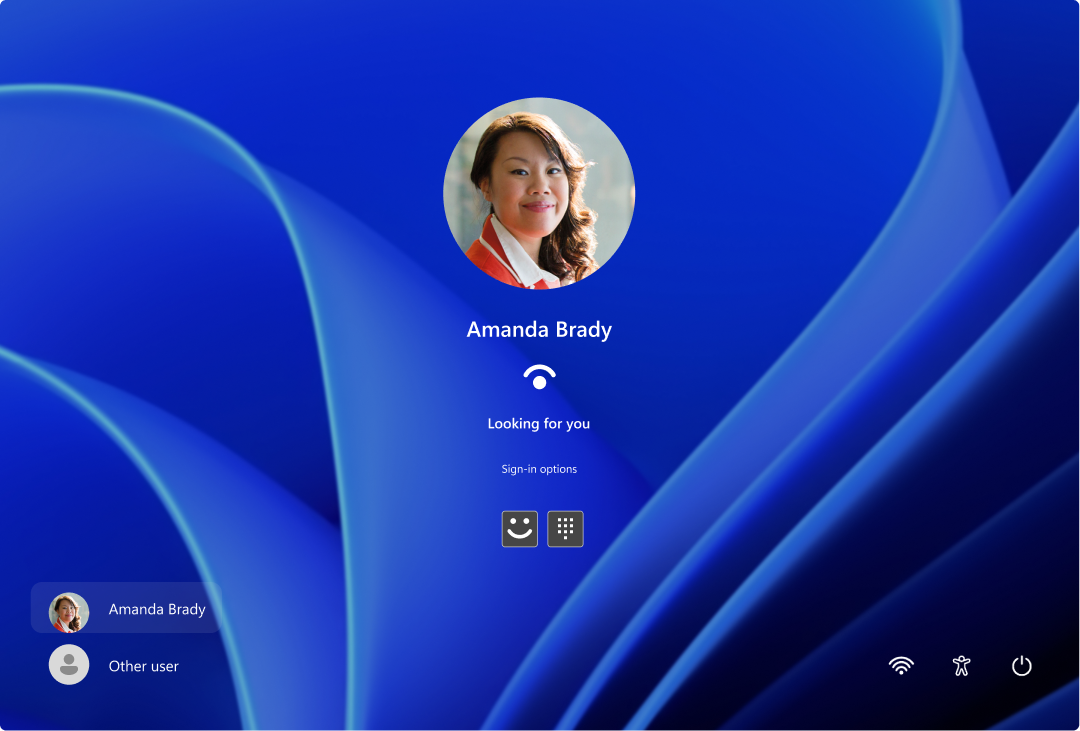
Security and User Management (The Security Guard) — The OS controls who can access the computer and what they can do. It manages user accounts, passwords, login screens, and access permissions. In a healthcare environment, this function is especially important because it helps enforce HIPAA requirements by restricting access to sensitive patient information.
When you log in to a clinic workstation with your username and password, the OS verifies your identity and grants you access only to the files, folders, and applications your account is authorized to use. Different staff members may have different access levels based on their role.
Knowledge Check
Part 4 of 5 — Input, Processing, and Output
Every task a computer performs follows the same three-step cycle: input, processing, and output. Understanding this cycle helps you see how the operating system coordinates hardware and software to produce results.
The Computing Cycle
- Input — Data enters the computer through an input device. Common input devices include the following:
- Keyboard — You type a patient's name into the EHR.
- Mouse — You click a button to open a menu.
- Scanner — You scan a signed consent form to create a digital copy.
- Barcode reader — You scan a medication barcode to verify the correct drug.
- Microphone — A physician dictates notes using voice recognition software.
- Processing — The CPU (central processing unit, often called the "brain" of the computer) processes the input data according to the instructions provided by the software. The OS manages this step by directing data between RAM, the CPU, and storage. Processing happens in fractions of a second for simple tasks and may take longer for complex operations such as generating reports from large datasets.
- Output — The computer presents the results through an output device:
- Monitor — The EHR displays the patient record you searched for.
- Printer — Word produces a printed copy of your referral letter.
- Speakers — The computer plays an audio alert when a new message arrives.
Some devices serve as both input and output. A touchscreen, for example, accepts your finger taps (input) and displays results on the same surface (output). Many healthcare check-in kiosks use touchscreens for this reason.
| Stage | Device | Healthcare Example |
|---|---|---|
| Input | Keyboard | Entering patient demographics into the EHR |
| Input | Barcode scanner | Scanning a medication barcode at the pharmacy |
| Input | Document scanner | Scanning a signed insurance card at the front desk |
| Processing | CPU | EHR software matching a patient name to the correct record |
| Output | Monitor | Displaying a patient's appointment schedule |
| Output | Printer | Printing a prescription label |
| Both | Touchscreen | Patient check-in kiosk at the clinic entrance |
Healthcare Connection: Understanding the input-processing-output cycle helps you troubleshoot common workplace issues. If a barcode scanner stops working (input problem), the printer jams (output problem), or the EHR takes a long time to load records (processing problem), knowing which stage is affected helps you describe the issue clearly to IT support and get it resolved faster.
Click an item to select it, then click the correct category to place it there.
Part 5 of 5 — Operating Systems in Healthcare
You might wonder why a healthcare professional needs to understand operating systems at all. After all, your job is patient care, not computer science. The answer is practical: every digital tool you use in healthcare depends on the operating system, and a basic understanding of how the OS works gives you the ability to handle common issues without waiting for IT support.
Why OS Literacy Matters for Healthcare Professionals
Consider the following real-world situations that healthcare workers encounter regularly:
Accessing the Electronic Health Record (EHR)
The EHR is an application that runs on top of the operating system. When you log in to the EHR, the OS verifies your credentials and grants you the appropriate access level. If the EHR application fails to launch, understanding the difference between an application problem (reinstall the EHR) and an OS problem (restart the computer) helps you take the correct first step.
Troubleshooting Login Issues
If you cannot log in to your workstation, the problem could be an incorrect password, a locked account (a security feature the OS enforces after too many failed attempts), an expired password that the OS requires you to change, or a network issue preventing the OS from verifying your credentials with the server. Knowing these possibilities helps you resolve the issue quickly or provide useful details to IT.
Understanding Updates and Security Patches
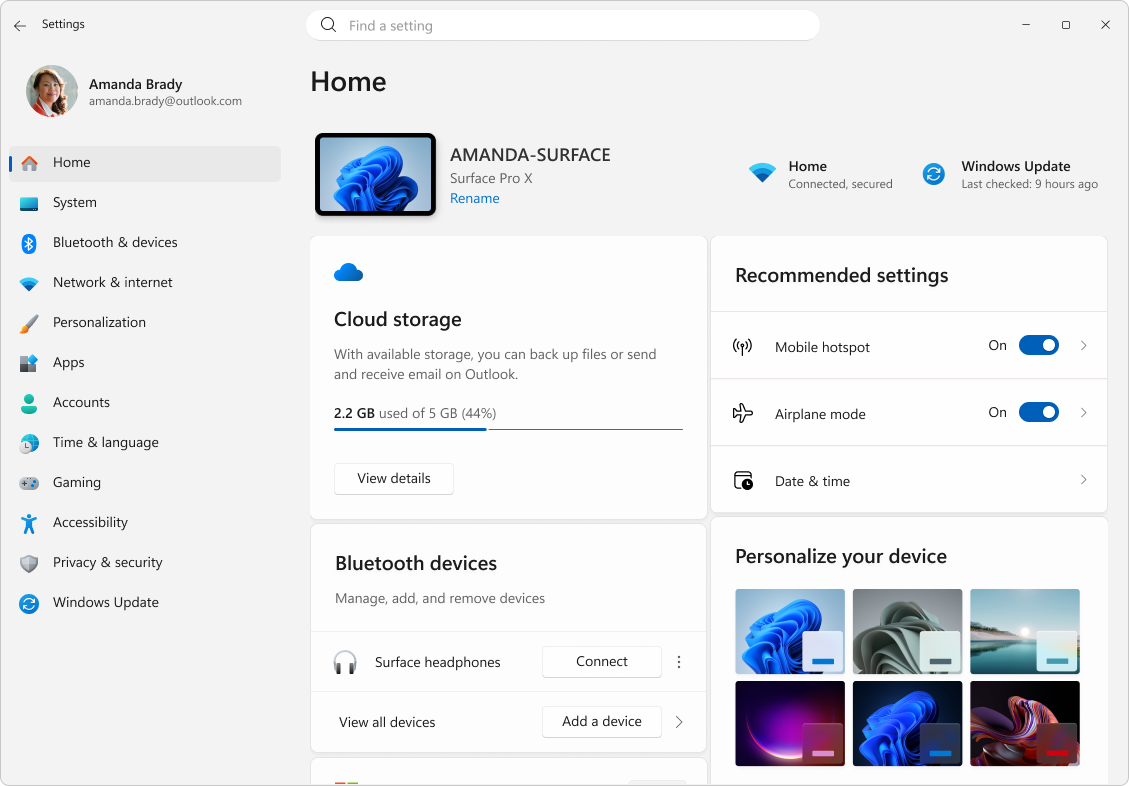
The OS periodically installs updates that fix bugs, improve performance, and patch security vulnerabilities. In a healthcare environment, these updates are especially critical because they protect patient data from cyberattacks. When your workstation displays a message asking you to restart for updates, it is important to allow the restart promptly rather than postponing it indefinitely.
Knowing When to Contact IT Support
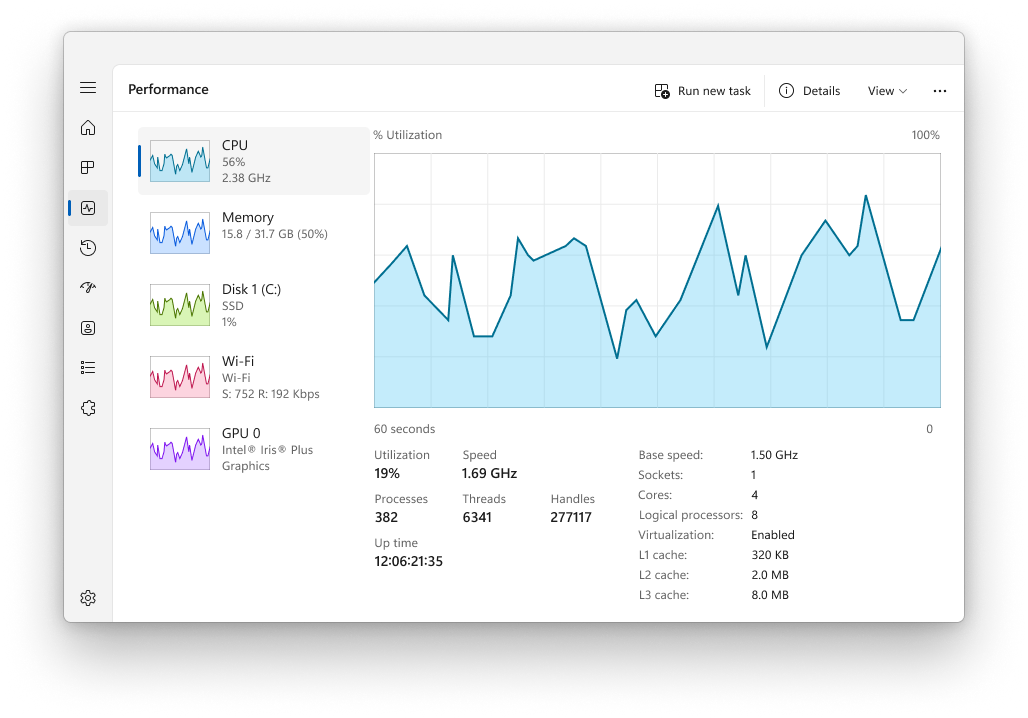
Not every computer issue requires a call to IT. Many common problems can be resolved with simple steps: restarting the computer (which clears memory and reloads the OS), closing unresponsive applications using Task Manager (press Ctrl + Shift + Esc), or reconnecting to the network. However, some issues, such as repeated system crashes, suspicious security warnings, or hardware failures, should always be reported to IT immediately.
Healthcare Workstation Troubleshooting
You arrive at your clinical workstation and the computer screen is completely black.
What is your first step?
The monitor is on, but the screen shows a black screen with a blinking cursor.
What should you try next?
After waking the computer, an “Update Required — Restart Now” popup appears. You have patients scheduled in 5 minutes.
What do you do?
Scenario Complete
Understanding basic troubleshooting steps helps you resolve common workstation issues quickly, minimizing disruptions to patient care and reducing your dependence on IT support for routine problems.
Knowledge Check
Healthcare Connection: In a medical office, even a few minutes of computer downtime can affect patient flow, delay check-ins, and create frustration for both staff and patients. A healthcare professional who understands OS basics, such as how to open Task Manager to close a frozen application or when to restart rather than call IT, can resolve many common issues independently. This self-sufficiency reduces downtime and keeps the office running smoothly.
Lesson 2.2 Summary
- An operating system is the software that bridges hardware and applications, managing everything from memory to security.
- System software (OS, drivers, utilities) manages the computer; application software (Word, EHR, Outlook) performs specific tasks.
- The five core OS functions are process management, memory management, file management, device management, and security.
- Every computing task follows the input, processing, and output cycle. Knowing which stage has failed helps you troubleshoot.
- Healthcare professionals benefit from OS literacy for EHR access, login troubleshooting, update management, and effective communication with IT support.