
Part 1: Opening Microsoft Word
Week 1 — Lesson 3 | CI1000: Computer Basics for Healthcare Professionals
Learning Objectives
By the end of this lesson you will be able to:
- Open Microsoft Word from the Start menu, taskbar, and File Explorer.
- Create a new blank document and a new document from a template.
- Name and save a document using Save and Save As, selecting appropriate file formats (.docx, .pdf) for different healthcare purposes.
- Explain the difference between Save and Save As using a healthcare record analogy.
Part 1: Opening Microsoft Word
Microsoft Word is the word processing application you will use most frequently in your healthcare career. From patient intake forms and referral letters to staff memos and policy documents, Word is the standard tool for creating professional written communication. Before you can create a document, you need to know how to open the application. There are three common methods.
Three Ways to Open Word
- From the Start menu: Click the Start button (or press the Windows key), type Word, and select Microsoft Word from the search results. This method works on any Windows computer, even if Word is not pinned to the taskbar.
- From the taskbar: If the Word icon is pinned to the taskbar at the bottom of your screen, simply click it. In most healthcare offices, common applications such as Word, Excel, and Outlook are already pinned to the taskbar for quick access.
- From File Explorer: Double-click any
.docxfile in File Explorer, and Windows will open it directly in Word. This is the fastest way to open an existing document you have already saved.
The Word Start Screen
When you open Word without selecting a specific file, you see the Start screen. This screen gives you two paths forward:
- Recent documents on the left side, showing files you have opened recently. This is helpful for quickly returning to a document you were working on earlier.
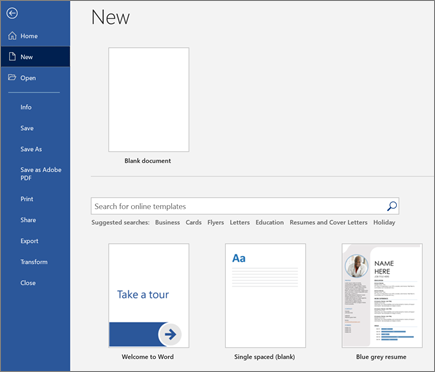
- New document options on the right side, including a Blank document option and a gallery of templates. We will explore both of these in the next section.
Pro Tip: Pin Word to your taskbar for one-click access. Right-click the Word icon in the Start menu and select Pin to taskbar. In a busy medical office, saving even a few seconds on routine tasks adds up throughout the day.
Part 2: Creating a New Document
Every Word document starts with a choice: do you begin with a blank page or use a pre-designed template? Both approaches are valuable, and healthcare professionals use each regularly depending on the situation.
Starting with a Blank Document
To create a blank document, open Word and select Blank document on the Start screen. You can also press Ctrl + N at any time while Word is open to create a new blank document instantly. This gives you a clean, empty page with default formatting: typically Calibri 11-point font, single spacing, and one-inch margins.
A blank document is ideal when you need full control over the content and layout. Examples in a healthcare setting include the following:
- Writing a one-time memo to clinic staff about a schedule change
- Drafting a custom letter to a patient
- Creating a unique document that does not match any available template
Using Templates
Templates are pre-designed documents that include formatting, placeholder text, and sometimes graphics. To browse templates, select File, then New, and either browse the featured templates or type a keyword in the search bar (for example, "memo," "letter," or "report").
In healthcare settings, templates are especially valuable because they promote consistency and compliance. When every referral letter follows the same format, it looks professional and ensures no required information is missed. Common healthcare templates include the following:
- Professional letters for referral letters, appointment confirmations, and insurance correspondence
- Memos for internal office communications about policy changes, meeting agendas, and safety announcements
- Fax cover sheets still used in many medical offices for transmitting patient records between facilities
- Reports for clinical summaries, quality improvement reports, and administrative reviews
- Flyers for patient education materials and community health event promotions
When you select a template, Word creates a new document based on that template. The original template file remains unchanged, so you can use it again and again with different information.
The Word Interface at a Glance
Once you have a document open, take a moment to identify the key parts of the Word workspace:
The Ribbon
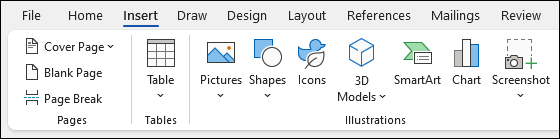
Wide toolbar at the top organized into tabs: Home, Insert, Design, Layout, References, Review, and View.
Quick Access Toolbar
Small toolbar above the Ribbon with one-click access to Save, Undo, and Redo.
Document Area
The large white workspace where you type and edit your document content.
Status Bar
Bottom bar showing page number, word count, language, view buttons, and zoom slider.
Healthcare Scenario: Your office manager at Sunrise Family Practice asks you to draft a memo announcing that the clinic will be closed next Friday for staff training. You open Word, search for "memo" in the template gallery, and select a professional memo template. The layout, headings, and formatting are already in place. You fill in the date, recipient, subject, and body text. Within minutes, you have a polished document ready for distribution. Using a template saved you from formatting the memo from scratch and ensured it matched the clinic's professional standards.
Part 3: Entering and Selecting Text
With a document open, you are ready to start typing. The blinking vertical line in the document area is your insertion point (also called the cursor). When you type, characters appear at the insertion point and move to the right. When the text reaches the right margin, it automatically wraps to the next line. This is called word wrap.
Text Entry Best Practices
Keep these important practices in mind when entering text:
- Do not press Enter at the end of every line. Word handles line breaks automatically through word wrap. Press Enter only when you want to start a new paragraph.
- Use one space after periods. Modern style guides recommend a single space between sentences, not two.
- Let AutoCorrect work for you. Word automatically fixes common spelling errors and capitalizes the first letter of sentences. You can customize these settings under File, then Options, then Proofing.
Selecting Text
Before you can format, move, copy, or delete text, you must first select it. Word provides several selection methods, from simple to advanced:
Mouse Selection Methods
- Click and drag to select a specific passage of text. Position your cursor at the beginning, hold down the left mouse button, and drag to the end of the text you want to select.
- Double-click a word to select just that word. Useful when you need to change a specific term, such as correcting a medication name.
- Triple-click to select an entire paragraph. Handy when you want to move, delete, or reformat a whole paragraph at once.
- Shift + Click to select a range. Click at the starting point, then hold Shift and click at the ending point. Everything between the two clicks is selected.
Keyboard Selection Methods
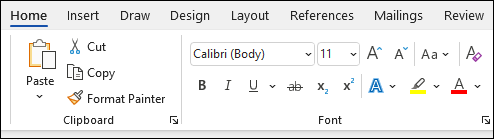
- Ctrl + A selects all text in the document. Use this when you need to change the font, size, or spacing for the entire document at once.
- Shift + Arrow keys select one character at a time in any direction. Hold Shift and press the left or right arrow key to extend the selection one character at a time.
- Ctrl + Shift + Arrow keys select one word at a time. This is efficient for precise selection without reaching for the mouse.
- Shift + Home selects from the cursor to the beginning of the current line. Shift + End selects from the cursor to the end of the line.
Once text is selected, it appears highlighted in blue. You can then format it, delete it, copy it, cut it, or replace it by simply typing new text.
Pro Tip: If you accidentally delete or replace selected text, immediately press Ctrl + Z to undo the action. This works for virtually any mistake in Word and is one of the most important shortcuts to memorize.
Part 4: Save vs. Save As
Saving your work is one of the most important habits you will develop as a computer user. In a healthcare environment, losing an unsaved document can mean repeating hours of work or losing critical information that affects patient care. Word offers two primary save commands, each serving a different purpose.
Save (Ctrl + S)
Save updates the current file with your latest changes. If the file has already been saved once, pressing Ctrl + S simply overwrites the previous version with the new one. If the document has never been saved (it is a new, untitled document), Word will prompt you to choose a file name and location, effectively performing a Save As.
Develop the habit of pressing Ctrl + S every few minutes while working. This simple practice prevents data loss from unexpected computer shutdowns, software crashes, or power outages. Word also offers AutoRecover, which automatically saves a recovery version of your document at regular intervals (typically every 10 minutes). You can adjust this interval under File, then Options, then Save.

Save As (F12)
Save As allows you to save the document with a new name, in a new location, or in a different file format. Save As creates a copy of the document while leaving the original file unchanged. This is essential in healthcare settings when you need to do the following:
- Preserve the original version of a policy document while creating an updated version
- Save a Word document as a PDF for emailing to a patient
- Create a personalized version of a template letter for a specific patient
- Save a copy of a document to a different location, such as a shared network drive or OneDrive

The Healthcare Record Analogy
Think of Save and Save As in terms of patient records:
- Save is updating an existing patient's chart. The patient comes in for a follow-up visit, and you add the new notes to their existing record. The old information is updated in place.
- Save As is creating a chart for a new patient. You might use the same form template, but you create a completely separate record with a new name. The original template (or the previous patient's chart) remains untouched.
Healthcare Scenario: Your clinic uses a standard referral letter template called ReferralLetter_Template.docx. When Dr. Martinez needs to refer a patient to a cardiologist, you open the template, fill in the patient's information, and use Save As to save it as ReferralLetter_Johnson_Cardiology_2026-03-31.docx. The original template remains unchanged and ready for the next referral. If you had used Save instead, you would have overwritten the template with this patient's information, and the blank template would be lost.
Choosing a Save Location
When you save a document for the first time (or use Save As), Word asks you where to save the file. Common locations include the following:
| Location | Best For | Healthcare Example |
|---|---|---|
| Documents | Personal files stored on this computer | Your CI1000 course work and typing logs |
| OneDrive | Cloud-synced files accessible from any device | Shared team documents, backup copies of important files |
| Desktop | Temporary quick access (not for long-term storage) | A document you are actively working on today |
| Network Drive | Shared organizational storage | Clinic-wide policy documents and shared templates |
| USB Drive | Portable backup or file transfer | Transporting files between office locations |
Pro Tip: Save your course documents in the CI1000 folder structure you created in the previous lesson. Use clear, descriptive file names with dates: TypingLog_Week1_2026-03-31.docx. This habit will serve you well in your healthcare career, where organized file management is a professional expectation.
Knowledge Check
Part 5: File Formats for Healthcare
In the previous lesson, you learned about common file extensions. Now it is time to understand when to use specific formats when saving Word documents. Choosing the right format matters in healthcare, where documents are shared between offices, uploaded to EHR systems, emailed to patients, and archived for compliance.
Three Formats Every Healthcare Professional Should Know
.docx (Word Document) - The Editable Standard
The default Word format preserves all formatting, images, tables, and editing capabilities. Use .docx for any document that will need ongoing editing or updates.
Healthcare examples:
- Clinic policy manuals that are updated quarterly
- Referral letter templates used repeatedly with different patient information
- Internal memos circulated among staff for review and revision
- Staff training materials that are revised each year
.pdf (Portable Document Format) - The Read-Only Standard
PDF preserves exact formatting and prevents accidental editing. It can be opened on any device without Microsoft Word. To save a Word document as PDF, select File, then Save As, and choose PDF from the "Save as type" dropdown.
Healthcare examples:
- Patient information sheets emailed or printed for distribution
- Consent forms that must maintain their exact legal format
- Compliance documents submitted to regulatory agencies
- Finalized reports shared with external partners or insurance companies
For detailed instructions, see Microsoft Support: Save or convert to PDF.
.rtf (Rich Text Format) - The Cross-Platform Bridge
RTF preserves basic formatting (bold, italic, fonts, colors) and can be opened by almost any word processing application on any operating system. It does not support advanced Word features such as macros, SmartArt, or complex table formatting.
Healthcare examples:
- Transferring formatted text between different software applications
- Sharing documents with partner offices that may not have Microsoft Word
- Creating documents compatible with older computer systems still used in some healthcare facilities
Click an item on the left, then click its match on the right.
Quick Format Reference
| Format | Editable? | Preserves Formatting? | Best For |
|---|---|---|---|
.docx |
Yes, fully editable | Yes, all Word features | Documents that need ongoing editing |
.pdf |
No (read-only) | Yes, exact layout preserved | Final documents for distribution |
.rtf |
Yes, with basic features | Basic formatting only | Cross-platform compatibility |
Try It Now: Open Microsoft Word and create a new blank document. Type a short paragraph introducing yourself, such as: "My name is [your name] and I am a student at Ultimate Medical Academy studying to become a [your program]. I am taking CI1000 to build my computer skills for a career in healthcare." Save the document as a .docx file in your CI1000 > Week1 folder with the name MyFirstDocument_Week1.docx. Then use Save As (F12) to save a second copy as a PDF in the same folder. You now have both an editable version and a read-only version of the same document.
The Save Workflow in Healthcare
In most healthcare offices, the standard document workflow follows this pattern:
- Create or open the document in Word (.docx)
- Edit and review the content, saving frequently with Ctrl + S
- Finalize the document after all edits and approvals are complete
- Save As PDF for distribution, email, or archival
- Store both versions in the appropriate folder: the .docx for future edits and the .pdf as the official record
This workflow ensures that you always have an editable master copy and a protected final version. It is a best practice in healthcare documentation and one you should adopt from the start of this course.
Save vs. Save As
You are updating a patient intake form and want to keep your changes in the same file.
Which command should you use?
Your supervisor sent you a blank intake template. You need to fill it in for a specific patient without changing the original template.
Which command should you use?
You wrote a referral letter in .docx format, but the receiving clinic's portal only accepts PDF uploads.
Which command should you use?
Scenario Complete
Knowing when to use Save versus Save As is essential for protecting templates, preserving originals, and converting file formats in healthcare settings.
Knowledge Check
Lesson 1.3 Summary
- Open Microsoft Word from the Start menu, the taskbar, or by double-clicking a .docx file in File Explorer.
- Create new documents from a blank page (Ctrl + N) or from pre-designed templates (File, then New) for consistency and efficiency.
- The Word interface includes the Ribbon, Quick Access Toolbar, Document Area, and Status Bar. Familiarize yourself with these components to work efficiently.
- Select text using click-and-drag, double-click (word), triple-click (paragraph), Ctrl + A (all), and keyboard shortcuts (Shift + Arrow keys).
- Save frequently with Ctrl + S. Use Save As (F12) when you need to preserve the original file, change the file name, or save in a different format.
- Save healthcare documents as .docx for ongoing editing and as .pdf for final distribution. Keep both versions organized in your folder structure.
- The standard healthcare document workflow is: create, edit, finalize, export to PDF, and store both versions in the appropriate folder.