
Part 1: Why File Management Matters
Week 1 — Lesson 2 | CI1000: Computer Basics for Healthcare Professionals
Learning Objectives
By the end of this lesson you will be able to:
- Explain the purpose of a file management system and why organized digital files are critical in healthcare settings.
- Navigate File Explorer to locate, open, and manage files and folders on a Windows computer.
- Create a logical folder hierarchy for organizing course documents using healthcare naming conventions.
- Identify common file extensions (.docx, .pdf, .xlsx, .pptx, .jpg) and associate each with its appropriate software.
Part 1: Why File Management Matters
Picture this: a patient calls your medical office asking for a copy of their referral letter from last month. You know the letter exists somewhere on the shared computer, but the desktop is covered with dozens of unsorted files. Documents have names such as "Document1.docx," "New folder (3)," and "Letter final FINAL v2.docx." After 10 minutes of searching, you still have not found it. The patient is frustrated, the provider is waiting, and the phone is ringing.
This scenario plays out in offices every day, and it is entirely preventable. File management is the practice of organizing, naming, and storing digital files so you can find them quickly and reliably. In a healthcare environment, good file management is not just a convenience. It is a professional responsibility.
Why It Matters in Healthcare
Healthcare offices generate a large volume of digital documents every day: patient intake forms, referral letters, insurance claims, policy manuals, training materials, and scheduling documents. When these files are organized properly, the following benefits result:
- Faster retrieval means shorter patient wait times and quicker responses to provider requests
- Fewer errors because the correct version of a document is easy to identify
- Better compliance with regulations that require organized record-keeping and audit trails
- Easier collaboration when multiple staff members need to access the same files
- Reduced stress because you spend less time searching and more time doing meaningful work
Healthcare Scenario: A medical billing specialist receives a call from an insurance company requesting documentation for a claim submitted two weeks ago. With a well-organized folder structure (Claims > 2026 > March > PatientLastName), she locates the file in under 30 seconds, emails it, and the claim is processed that same day. Without that structure, the same request could take 15 minutes or more, delaying the payment and creating a backlog.
Part 2: Understanding the File Hierarchy
Before you start organizing files, it helps to understand how computers store them. Think of your computer's storage system as a filing cabinet. The cabinet itself is the drive (usually the C: drive on a Windows computer). Inside the cabinet are folders (like drawers), and inside those folders are files (like individual documents). Folders can also contain other folders, called subfolders, which work like labeled dividers within a drawer.
The Tree Structure
Computer scientists call this organization a tree structure because it branches out from a single starting point. At the top is the root directory (C:\), and beneath it are branches of folders and subfolders that spread outward. Every file on your computer has a unique address called a file path that describes exactly where it lives in this tree.
For example, a file path might look like this:
C:\Users\JSmith\Documents\CI1000\Week1\Lesson1-Notes.docx
Reading this path from left to right, you can trace the location: the C: drive, the Users folder, the JSmith user folder, Documents, the CI1000 course folder, the Week1 subfolder, and finally the file itself. Understanding file paths helps you navigate your computer with confidence, especially when saving files to specific locations or troubleshooting missing documents.
Key Storage Locations
Desktop
Quick access to frequently used files. Keep it clean. Not a long-term storage location.
Documents
Your primary storage folder for course work, reports, and personal files.
Downloads
Where files from the internet land. Move them to the right folder after downloading.
OneDrive
Cloud storage from Microsoft. Files saved here are backed up and accessible from any device.
Arrange the file path from the broadest level (computer) down to the specific file. Click two items to swap their positions, then check your answer.
Part 3: Navigating File Explorer
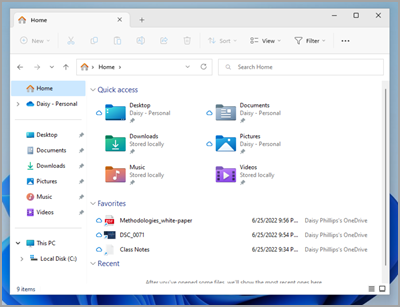
File Explorer is the built-in Windows application for browsing, organizing, and managing your files and folders. You will use it every day, so learning to navigate it efficiently is an essential skill.
Opening File Explorer
There are several ways to open File Explorer:
- Click the folder icon on the Windows taskbar (it is usually pinned there by default)
- Press Windows key + E on your keyboard (the fastest method)
- Right-click the Start button and select File Explorer from the menu

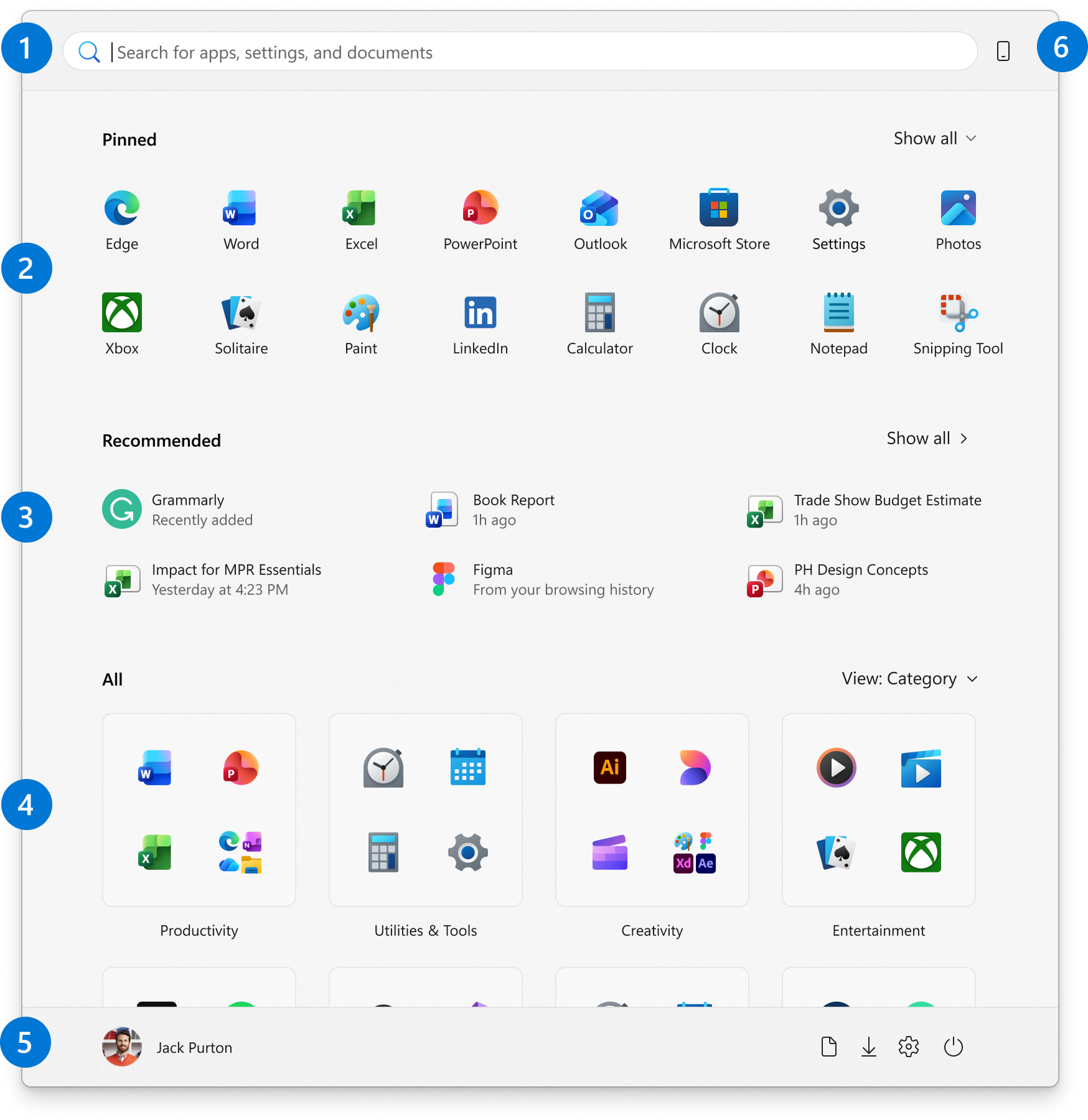
- Search — Type any keyword to find apps, files, or settings instantly. Press the Windows key and start typing.
- Pinned Apps — A customizable grid of your most-used apps and files. Click All apps (top-right) for a full alphabetical list.
- Recommended — Windows surfaces recently opened files and newly installed apps here automatically.
- All Apps — Browse every installed application in alphabetical order. Useful when an app is not pinned.
- Account & Power — Access account settings and sign-out options. The power button lets you lock, sleep, shut down, or restart.
- Mobile Device Companion — View your phone's messages, calls, and notifications via Phone Link (works with Android and iPhone).
The File Explorer Window
When File Explorer opens, you will see several key areas:
Navigation Pane (Left Side)
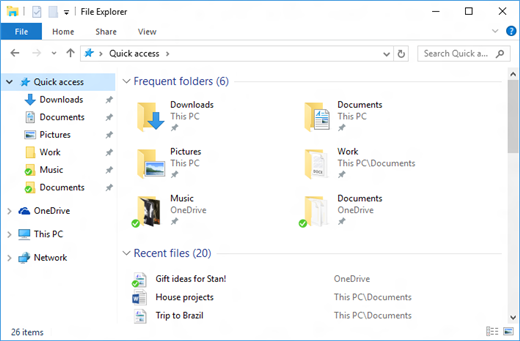
The vertical panel on the left side displays your Quick Access locations, OneDrive, This PC, and Network. Think of it as a table of contents for your computer. Click any item to jump directly to that location.
- Quick Access shows your most frequently used folders and recently accessed files
- This PC shows all drives and default folders (Desktop, Documents, Downloads, Music, Pictures, Videos)
Address Bar (Top)
The address bar at the top shows the file path of your current location. You can click any part of the path to jump to that folder level. You can also type a path directly into the address bar and press Enter to navigate there instantly.
Content Area (Center)
The large center area displays the files and folders in your current location. You can change how items are displayed using the View menu: Large Icons, Small Icons, List, Details, and more. Details view is the most useful for file management because it shows the file name, date modified, type, and size in neat columns.
Search Bar (Top Right)
The search bar allows you to search for files within the current folder and its subfolders. Type a file
name, keyword, or file extension (such as .pdf) and press Enter. This is a quick way to
find a specific file when you know part of its name but not its exact location. For more search tips,
see Microsoft Support: Find your files in Windows.
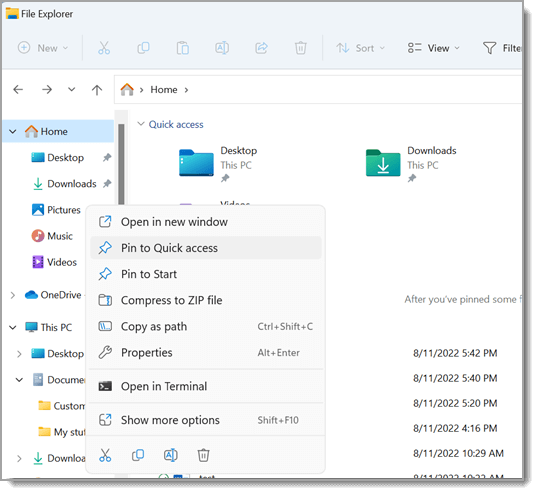
Pro Tip: Pin your most important folders to Quick Access by right-clicking the folder and selecting Pin to Quick Access. For this course, pin your CI1000 folder so you can reach it with one click from anywhere in File Explorer.
Part 4: Essential File Operations
Now that you know how to navigate File Explorer, it is time to learn the core file operations you will use every day. These actions are the building blocks of digital organization.
Creating Files and Folders
To create a new folder in File Explorer, follow these steps:
- Navigate to the location where you want the new folder
- Right-click in an empty area of the content pane
- Select New, then select Folder
- Type a descriptive name for the folder and press Enter
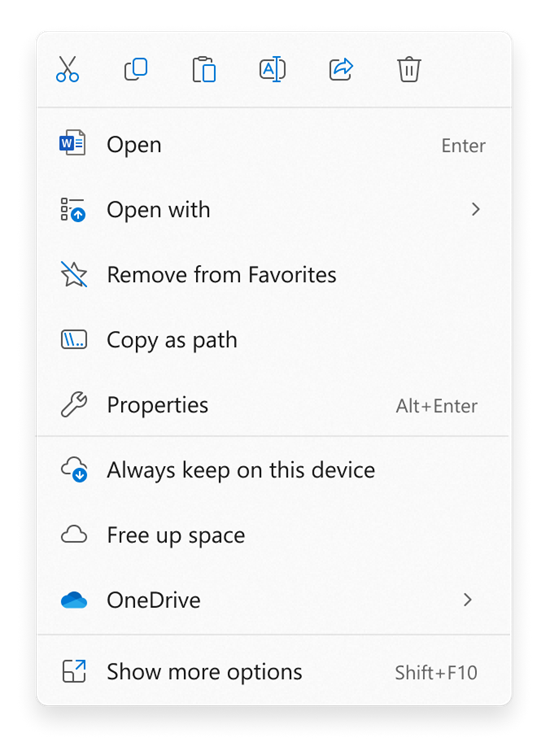
You can also press Ctrl + Shift + N to create a new folder instantly. For more details, see Microsoft Support: Create a new folder.
Renaming, Moving, Copying, and Deleting
| Operation | How to Do It | Keyboard Shortcut |
|---|---|---|
| Rename | Right-click the file, select Rename, type the new name, and press Enter | F2 |
| Copy | Right-click the file, select Copy, navigate to the destination, right-click, and select Paste | Ctrl+C then Ctrl+V |
| Move (Cut) | Right-click the file, select Cut, navigate to the destination, right-click, and select Paste | Ctrl+X then Ctrl+V |
| Delete | Right-click the file and select Delete, or select the file and press the Delete key | Delete |
| Undo | If you accidentally delete, move, or rename a file, immediately press Ctrl+Z to undo | Ctrl+Z |
Pro Tip: Deleted files go to the Recycle Bin, not into permanent deletion. If you accidentally delete a file, double-click the Recycle Bin on your desktop, find the file, right-click it, and select Restore. The file will return to its original location. However, do not rely on the Recycle Bin as a safety net. Empty it regularly to free up disk space.
Knowledge Check
Part 5: File Types Every Healthcare Professional Should Know
Every file on your computer has a file extension, a short suffix after the file name that
tells Windows which application should open it. For example, a file named Memo.docx has the
extension .docx, which tells Windows to open it with Microsoft Word. Understanding common file
extensions helps you identify files at a glance and troubleshoot when a file will not open correctly.
.docx (Microsoft Word) is the most common document format in healthcare offices. Use it for memos, referral letters, policy manuals, and any document that needs to be edited.
.pdf (Portable Document Format) preserves formatting exactly and cannot be easily edited. Use it for patient handouts, consent forms, and compliance documents that you want to share without risk of accidental changes.
.txt (Plain Text) contains text with no formatting. Sometimes used when importing or exporting data between software systems.
.xlsx (Microsoft Excel) is used for spreadsheets, data analysis, budgets, and tracking. In healthcare, Excel spreadsheets track patient volume, billing totals, supply inventories, and staff schedules.
.csv (Comma-Separated Values) is a simple spreadsheet format used for data exchange. Many EHR systems can export patient data as CSV files for analysis in Excel.
.pptx (Microsoft PowerPoint) is used for slide presentations. Healthcare professionals use PowerPoint for staff training sessions, patient education presentations, and conference talks.
.jpg and .png are common image formats. JPG is best for photographs (smaller file size), while PNG supports transparent backgrounds and is better for logos and diagrams. Healthcare offices use images in patient brochures, educational materials, and website content.
.zip is a compressed folder that bundles multiple files together and reduces their total size. Useful for emailing multiple documents at once.
.mp3 and .mp4 are audio and video formats. Some healthcare organizations use audio recordings for dictation or video files for training modules.
For a complete reference of file extensions, see Microsoft Support: Common file name extensions in Windows.
Part 6: Healthcare File Naming Conventions
A good file name tells you what the file contains without opening it. In healthcare settings, where multiple staff members share files and where compliance audits may require locating specific documents months or years later, consistent naming conventions are essential.
Best Practices for File Naming
- Be descriptive. Include the document type, subject, and date. For example:
Memo_StaffMeeting_2026-03-15.docxis far more useful thanDocument1.docx - Use dates in YYYY-MM-DD format. This format sorts chronologically in File Explorer. Avoid formats such as "March 15" or "3-15-26" because they do not sort correctly
- Use underscores or hyphens instead of spaces. While Windows allows spaces in file names,
some software systems have trouble with them. Underscores (
_) and hyphens (-) are safer alternatives - Include version numbers when revising. Use v1, v2, v3 or dates to distinguish versions. For
example:
PatientHandout_Diabetes_v2.docx - Keep names reasonably short. Long file names can cause problems when file paths exceed the Windows character limit (260 characters). Aim for clear but concise names
- Avoid special characters. Do not use the following characters in file names:
\ / : * ? " < > |. Windows does not allow them, and they can cause errors in other systems
Creating Your CI1000 Folder Structure
Now it is time to set up the folder structure you will use throughout this course. Create the following hierarchy inside your Documents folder:
Try It Now: Open File Explorer (Windows key + E), navigate to your Documents folder, and create the following folder structure:
- CI1000 (main course folder)
- Week1
- Week2
- Week3
- Week4
- Week5
- Assignments
- Discussions
- Practice (for typing practice logs and screenshots)
Pin the CI1000 folder to Quick Access so you can reach it with one click from now on.
Healthcare Scenario: At a multi-provider medical practice, the office manager establishes a shared folder structure on the network
drive. Each department has its own folder, and within each department folder are subfolders for forms,
policies, and correspondence. Every document follows a consistent naming convention:
DeptName_DocType_YYYY-MM-DD.ext. When a new employee starts, they can find any document within
seconds because the system is logical and consistent. This is the standard you are building toward in your
career.
Healthcare File Naming
You just created a patient education handout about diabetes management. You need to save it with a proper file name.
Which file name follows healthcare naming best practices?
Now you need to choose where to save the handout.
Which location is most appropriate?
A colleague asks you to email the handout. Which format should you send?
What file format is best for sharing with patients?
Scenario Complete
File naming, save location, and file format are the three pillars of professional document management in healthcare.
Knowledge Check
Lesson 1.2 Summary
- File management is the practice of organizing, naming, and storing digital files so they can be found quickly. In healthcare, this directly affects patient care, compliance, and office efficiency.
- Computers organize files in a tree structure of drives, folders, and subfolders. Every file has a unique file path that describes its location.
- File Explorer is the Windows tool for navigating and managing files. Key areas include the Navigation Pane, Address Bar, Content Area, and Search Bar.
- Core file operations include creating, renaming, copying, moving, and deleting files and folders. Ctrl+Z undoes the most recent action.
- Common file extensions include .docx (Word), .pdf (read-only), .xlsx (Excel), .pptx (PowerPoint), .jpg and .png (images), and .zip (compressed).
- Healthcare file naming conventions use descriptive names, YYYY-MM-DD dates, underscores or hyphens, and version numbers for clarity and compliance.